Atlas【图集】
本文目录 12 个章节
Atlas【图集】
创建时间:2021/4/13 23:09
- Atlas【图集】
- Sprite的本质
- 图集(Atlas)的本质
- 图集的作用
- Unity中的图集功能
- Late Binding technology
- Preparing Sprite Atlases for distribution
- Late Binding
- Late Binding technology
- Texture Packer
- Texture Packer的图集 vs. Unity Atlas的区别
- 命令行使用
- 更多用法
- 相关链接
Sprite的本质
原本的数据是图片,图片导入后,Sprite类型的设置以及Sprite的分割都是在ImportSettings当中设置的。而ImportSettings的信息就存储在.meta文件当中。因此,Sprite的本质就是meta文件当中存储的图集名称、ID及在原图片上的偏移量等信息。
图集(Atlas)的本质
将Sprite集合设置为图集后,图集资源存储的就是Sprite索引的集合,在打包时,会将图集合并为Texture2D类型的资源放入包中,然后再放入各个Sprite的名称、ID以及在图集上的偏移量。
图集的作用
节省内存 - OpenGL载入纹理图片时,所用内存会自动扩张到2的N次方。如果图片大小为6465,那么就会按照64128载入。
减小包体 - 合成的大图会比之前所有的散图所占用的物理存储更小
提升载入速度 - 将很多小图拼接成一张大图,载入内存时一次载入,提高了载入速度。
DrawCall合批
Unity中的图集功能
只有Sprite模式的图片才可以打包成图集
旧版: Sprite Mode 设置为 Muitiple 设置Packing Tag Window->Sprite Packer –>点击 Pack 即可
新版: Project Setting -> Editor -> Sprite Packer -> Mode = Always Enabled 新建 Sprite Atlas 选择打包图集的文件夹或者依次添加单独图片,点击Pack Preview后自动打包成一个图集
代码获取图集并动态选择Sprite:
string s1 = "Hello ";
string s2 = s1;
s1 += "World";

System.Console.WriteLine(s2);
//Output: Hello
Late Binding technology
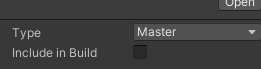
Include in Build - Unity includes the Sprite Atlases with the Project’s build and automatically loads them at the build’s run time.
Preparing Sprite Atlases for distribution
Disable ‘Include in Build’ - Unity does not include the disabled Sprite Atlas in the Project’s published build, and does not automatically load it at run time.
Methods:
Place the Sprite Atlases into the build’s Resources folder.
Distribute them as downloadable AssetBundles.
Late Binding
the build does not automatically load a prepared Sprite Atlas at run time.
SpriteAtlasManager.atlasRequested - Trigger when any Sprite was bound to SpriteAtlas but couldn’t locate the atlas asset during runtime.
如果图集勾选Include in Build,在打包时,图集本身就会被自动打入AB包当中,加载Prefab时,就会把图集加载进内存,也就不会触发atlasRequested
不勾选Include in Build,在打包时,图集不会自动进入prefab所在的AB包,也不会自动加载出来,触发atlasRequested事件后,在相应的回调函数当中加载图集,即可实现延迟绑定,图集加载出来之后即可显示。
string s1 = "Hello ";
string s2 = s1;
s1 += "World";

System.Console.WriteLine(s2);
//Output: Hello
string s1 = "Hello ";
string s2 = s1;
s1 += "World";

System.Console.WriteLine(s2);
//Output: Hello
Texture Packer
Texture Packer的图集 vs. Unity Atlas的区别
Unity打图集时会将设置的一个sprite集合打入一张Texture2D当中,不会生成png、jpg等编码的图片格式,而在打包成AssetBundle后会生成一个Texture2D类型的资源。将合并后的Texture2D类型的资源以及各个图集的名称、ID、偏移量存储到包中。
Texture Packer的基本使用:
Texture Packer会将图集合并成图片,生成一张合并后的PNG,并生成 .tpsheet文件(图集表),存储各个Sprite的名称以及偏移量。
在Unity中安装TexturePacker Importer插件后,将合并后的图集以及.tpsheet表格导入Unity后,插件会自动读取该信息,并根据该信息处理合并后的图片的ImportSettings,拆分Sprite,在Unity中还原TexturePacker中的设置。
命令行使用
string s1 = "Hello ";
string s2 = s1;
s1 += "World";

System.Console.WriteLine(s2);
//Output: Hello
其他相关参数:
string s1 = "Hello ";
string s2 = s1;
s1 += "World";

System.Console.WriteLine(s2);
//Output: Hello
更多用法
见官网:https://www.codeandweb.com/texturepacker/unity
相关链接
图集的详细介绍:https://www.cnblogs.com/msxh/p/14194756.html http://blog.justbilt.com/2013/12/12/use_tp_on_command_line/ https://zhuanlan.zhihu.com/p/89332754