---
title: "Python Qt Resource System的使用"
author: "Perrin Yong"
author_profile: https://www.pystone.net/profile/
published_by: "Perrin Yong"
canonical: https://www.pystone.net/notes/python-qt-resource-system/
type: note
content_role: unspecified
visibility: public
id_stability: rename-stable
source_path: "10-计算机、信息技术与工程/04-应用开发与云端工程/桌面应用开发/Python Qt Resource System的使用.md"
content_hash: 41e21d4d852723d2be93263a3242bfc7b4245b1dedb1890d6a60db48be16c320
knowledge_version: 224c990773de.5fa8af6e39fa
site_commit: 224c990773de166d23a886306577dd90379529ce
notes_commit: 5fa8af6e39fa3891d1b9b4832bfa6c4e0ecaaf0a
---
# Python Qt Resource System的使用
The Qt resource system is a platform-independent mechanism for storing binary files in the application's executable. This is useful if your application always needs a certain set of files (icons, translation files, etc.) and you don't want to run the risk of losing the files.
在封装到exe文件时,UI资源文件需要再拷贝一份到dist路径下,不方便。
使用qrc文件管理资源文件,并利用pyrcc5命令将qrc文件转为py文件,供Python使用。
qrc文件是XML格式的资源配置文件,记录了硬盘上的文件和对应的资源名称。
**由于qrc文件中的路径为相对路径,因此,qrc 文件中包含的资源文件必须位于.qrc文件所在路径或其子路径下。**
qrc文件内容示例:
```xml
images/blue_1.png
images/blue_2.png
```
## 基本用法
1. 使用QT Designer,可以在Resource Brower中,点击编辑按钮,对qrc进行编辑,配置qrc引用的资源的前缀和路径。
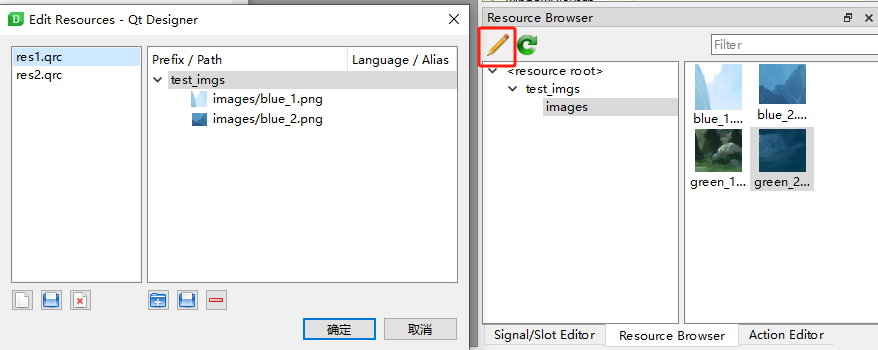
2. 使用pyside6-rcc,将qrc编译成py脚本,即可将资源编译到py文件当中。
```bat
set RCC_EXE=C:\Users\[redacted-user]\miniconda3\envs\python38\Scripts\pyside6-rcc.exe
set RCC_SRC1=E:\0-UWAGameCI\4-Recorder\ExperimentalBuild\myapp\res1.qrc
set RCC_SRC2=E:\0-UWAGameCI\4-Recorder\ExperimentalBuild\myapp\res2.qrc
"%RCC_EXE%" -o E:\0-UWAGameCI\4-Recorder\ExperimentalBuild\myapp\res1_rc.py "%RCC_SRC1%"
"%RCC_EXE%" -o E:\0-UWAGameCI\4-Recorder\ExperimentalBuild\myapp\res2_rc.py "%RCC_SRC2%"
```
3. 在代码中,通过导入资源对应的py文件,即可使用qrc中引用的资源。
```python
import res1_rc
## 或者
import res2_rc
```
可以在Python代码中直接使用资源,也可以在QSS中引用资源。引用方式相同,不需要绑定qrc文件。
```python
self.label.setPixmap(QPixmap(":/test_imgs/images/blue_2.png"))
```
```css
QLabel#label_1 {
background-image: url(:/test_imgs/images/green_1.png);
border: 2px solid red;
color: blue;
}
QLabel#label_2 {
background-image: url(:/test_imgs/images/green_2.png);
border: 2px solid green;
color: blue;
}
```
```xml
Icons/Python_icon.ico
```
```python
icon = QPixmap(":/icons/Py_ico")
```
* 可将不同资源在不同的qrc文件中引用,分别进行编译、导入。使用方法完全相同,在导入资源后,只需要使用资源的路径即可,不需要指定是哪个qrc文件中的资源。
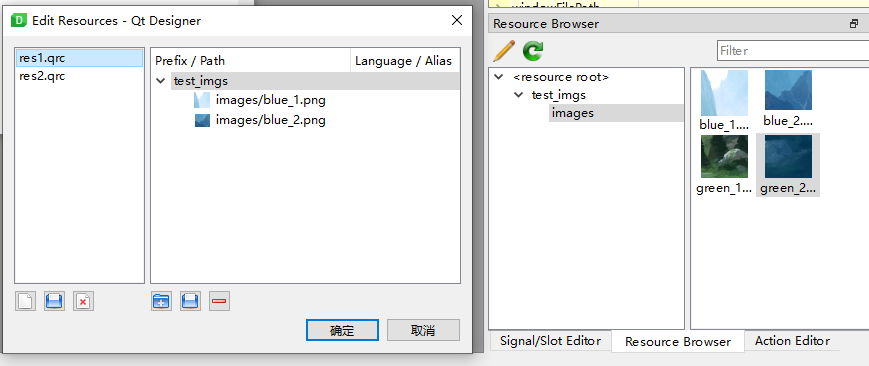
* 在资源被加载后,执行使用资源文件的代码才会有效。如果QSS当中引用了qrc中的资源,那么在资源的_rc.py文件被加载后,需要重新调用setStyleSheet,才能生效。
## 资源的初始化与清除
qrc生成的_rc.py文件包括两个函数,分别用于资源数据的注册和清除。

* 资源被注册后才可以被程序使用。
* 资源被清除后,程序引用的资源不会被立即删除。但是后续的程序再引用资源时,资源会丢失。
可使用以下代码对当前的资源进行注册或清除:
```python
import res1_rc
import res2_rc
def switch_rc(self, rc_name):
if rc_name == "res1_rc":
res2_rc.qCleanupResources()
res1_rc.qInitResources()
elif rc_name == "res2_rc":
res1_rc.qCleanupResources()
res2_rc.qInitResources()
```
该方案只用于帮助对资源系统的理解,应该没有实际意义。
## 利用qrc管理和读取资源文件
```python
from PySide6.QtCore import QFile, QIODevice
def get_about_text():
# 使用Qt风格读取文本文件
about_file = QFile(":/texts/About_Text") # 使用Qt中的QFile类
about_file.open(QIODevice.ReadOnly | QIODevice.Text) # 打开文件
about_text = str(about_file.readAll(), encoding="utf-8") # 读取文件,并将 QBtyeArray 转为 str
about_file.close()
return about_text
```
## 进阶用法
## rcc的用法
```shell
$ pyside6-rcc --help
Usage: /path/to/your/python3/site-packages/PySide6/Qt/libexec/rcc [options] inputs
Qt Resource Compiler version 6.4.1
Options:
-h, --help 显示关于命令行选项的帮助
--help-all 显示包括Qt独有选项在内的所有帮助
-v, --version 显示版本信息
-o, --output 将输出写入到 中,而不是 stdout 中
-t, --temp 为大资源文件使用临时文件
--name 用 创建一个外部初始化函数
--root 用根目录 作为资源访问路径的前缀
--compress-algo 使用 算法压缩输入文件([zlib], none)
--compress 按 级别压缩输入文件
--no-compress 禁用所有压缩,等同于 --compress-algo=none
--no-zstd 禁止使用 zstd 压缩
--threshold 衡量是否值得进行压缩的阈值
--binary 输出一个作为动态资源使用的二进制文件
-g, --generator 选择生成器
--pass Pass number for big resources
--namespace 关闭命名空间宏
--verbose 启用 verbose 模式
--list 只列出 .qrc 文件条目,不生成代码
--list-mapping 只输出 .qrc 中定义的资源路径与文件系统路径的
映射,不生成代码
-d, --depfile 向 中写入一个包含 .qrc 依赖项的 depfile
--project 输出一个包含当前目录下所有文件的资源文件
--format-version 写入 RCC 格式的版本
Arguments:
inputs 输入文件 (*.qrc)
```
## 根据语言切换资源
```xml
cut.jpg
cut_fr.jpg
```
当系统语言为其他语言时,Qt 程序将会使用文件 `cut.jpg`;而当系统语言为法语时,会自动替换为 `cut_fr.jpg`。
## 压缩
rcc 会尝试压缩内容以优化硬盘空间使用。默认情况下,它将进行启发式检查以确认是否值得压缩。如果不能充分压缩,则将直接存储非压缩的内容。可以使用 `-threshold` [选项](https://muzing.top/posts/75a2283d/#rcc-%E5%91%BD%E4%BB%A4%E8%A1%8C%E9%80%89%E9%A1%B9)控制此判断的阈值。例如,默认情况下阈值为 70,表示只有在压缩后的文件比原文件小 70%(不超过原文件大小的 30%)时才有必要压缩。
```shell
rcc -threshold 25 myresources.qrc
```
在某些情况下也可以关闭压缩功能。一种常见情况是,某些资源已经是压缩后的格式(例如 `.png` 文件),再次压缩几乎不会进一步减小文件体积,但会占用 CPU 成本。另一种情况是,硬盘空间非常充裕,期望应用程序在运行时可以将内容存储在干净的内存页中。在[命令行](https://muzing.top/posts/75a2283d/#rcc-%E5%91%BD%E4%BB%A4%E8%A1%8C%E9%80%89%E9%A1%B9)中添加 `-no-compress` 命令以关闭压缩。
```shell
rcc -no-compress myresources.qrc
```
https://blog.csdn.net/qq_32892383/article/details/108867482?ops_request_misc=%257B%2522request%255Fid%2522%253A%2522163876323716780261931301%2522%252C%2522scm%2522%253A%252220140713.130102334..%2522%257D&request_id=163876323716780261931301&biz_id=0&utm_medium=distribute.pc_search_result.none-task-blog-2~all~top_positive~default-1-108867482.first_rank_v2_pc_rank_v29&utm_term=%E5%AE%89%E8%A3%85pyqt5&spm=1018.2226.3001.4187
https://blog.csdn.net/gongjianbo1992/article/details/105361880
https://muzing.top/posts/75a2283d/
https://www.youtube.com/watch?v=9srbSGYnfM8
https://www.bilibili.com/video/BV19s411b7gH/?spm_id_from=333.337.search-card.all.click&vd_source=37d77b0c4f47ce9562d64df16c394303
https://www.bilibili.com/video/BV1Hz411e7Kx/?spm_id_from=333.337.search-card.all.click&vd_source=37d77b0c4f47ce9562d64df16c394303
## Thanks
https://blog.csdn.net/qq_26915769/article/details/84535106
https://doc.qt.io/qtforpython-6/tutorials/basictutorial/qrcfiles.html
https://muzing.top/posts/75a2283d/